Using Frooition when BigCommerce is your main store
Open this page in Frooition /productsIf your BigCommerce store is where your products, prices and stock are managed, and you use Frooition to sell the same products on eBay, this guide explains exactly what Frooition does, what it never does, and how to add and edit products day to day.
The short version
- BigCommerce is your master. Your website's titles, descriptions, prices, photos and categories are only ever changed by you, in BigCommerce.
- Frooition only sends stock levels to BigCommerce. Nothing else.
- Price and stock changes in BigCommerce go to eBay automatically, usually within a few minutes.
- Your eBay listings are edited in Frooition (Inventory). Saving a product there updates eBay, plus the stock level on BigCommerce if you changed it. Before anything is sent, Frooition shows you what will change on each channel and asks you to confirm.
Step 1: Check your settings
In Frooition, open Inventory, then Settings, then Sync rules & listing defaults.
- Under Your BigCommerce products, choose BigCommerce is my master: never change my BigCommerce titles, descriptions, prices or images. With this on, only stock levels are ever sent to BigCommerce.
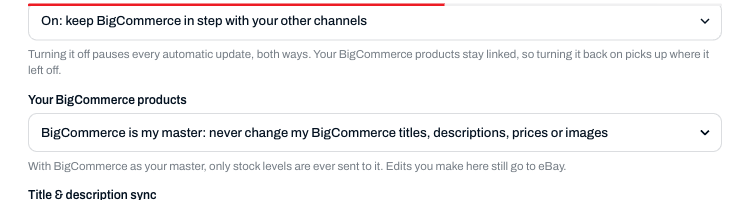
- Under When something sells on eBay, choose Lower the stock on BigCommerce too if you sell one-off or low-stock items, so an item that sold on eBay doesn't still show as available on your website.
- Leave the Nightly check off. With BigCommerce as your master, your BigCommerce stock and prices already reach eBay automatically.
- Set your eBay listing defaults: shipping, payment and return policies, and the item location postcode.
Step 2: Make sure your BigCommerce products are complete
eBay listings are built from your BigCommerce products, so before you list:
- SKU: every product needs one. It's how Frooition matches a BigCommerce product to its eBay listing.
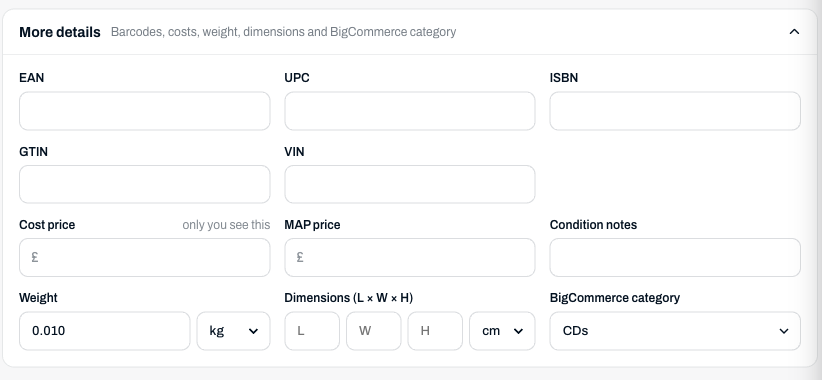
- Weight and dimensions: needed if your eBay shipping policy uses calculated shipping. eBay refuses a calculated-shipping listing without a weight.
- Photos: eBay requires at least 500 pixels on the longest side. Frooition uses the full-size version of your BigCommerce photos.
Step 3: Adding a new item
- Add the product in BigCommerce as you normally would.
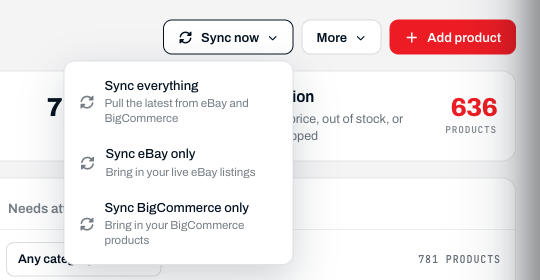
- In Frooition, open Inventory, click Sync now and choose Sync BigCommerce only. The new product comes in from BigCommerce.
- Open the product in Inventory. On the Details tab, set the Title you want on eBay (up to 80 characters; it can be longer than your website title).
Check the eBay shipping policy further down the same tab.
Open More details to check the Weight and Dimensions, then check the Item specifics tab.
- Open the Channels tab and click List on eBay.

- On eBay, put the new listing into your store category.
None of these steps changes your BigCommerce product.
Day to day
| You want to change... | Do it in... | What happens |
|---|---|---|
| Price or stock | BigCommerce | eBay is updated within a few minutes |
| Website title, description, photos, categories | BigCommerce | Your website only. eBay keeps its own title and description |
| eBay title, description, item specifics, weight, shipping policy | Frooition, Inventory | The live eBay listing only |
| eBay store category | eBay | eBay only |
Photos on eBay
If a listing's photos are under 500 pixels on the longest side, eBay still shows them but won't save any change to the listing, including a new store category or new photos. If eBay won't save a change, check the photo sizes first. A photo that shows as "not loading" on eBay is usually an eBay processing error, and uploading it again normally fixes it.
Your data is backed up
Frooition takes a copy of a BigCommerce product before it changes anything on it, and keeps a nightly copy of your whole BigCommerce catalogue, so anything we change can be put back exactly.
Need help?
Open Help, then Contact support, and we'll go through your setup with you.